Google Calendar can do more than just organize your personal schedule. You can also use it to share any event imaginable with others, allowing you to easily coordinate with friends and coworkers. Follow this guide to share your calendars with virtually anybody.
1
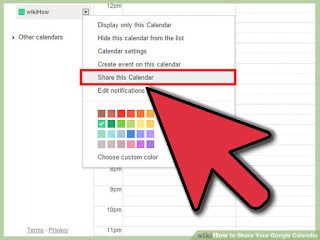
Select the calendar you are sharing. On your Google Calendar homepage, click on the arrow to the right of the calendar you want to share. Select "Share this Calendar."
- Privately sharing your calendar means that you'll be able to share a specific URL that only you and your friends or coworkers will know. Otherwise, your calendar will not be viewable or indexed by anyone who doesn't have this URL.
2
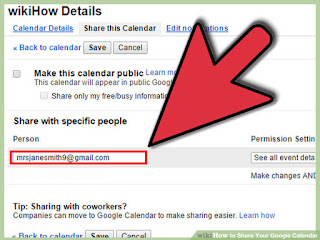
Enter the recipients’ emails. Under "Share with specific people," type in the email address of the individuals or email lists whom you'd like to share with. Decide how much control you'd like each person to have over your calendar, then click "Add Person."
- ”See all event details” means that the recipient will be able to see the locations and notes for any entry on the calendar.
- ”Make changes AND manage sharing” means that the recipient can add and edit events as they see fit as well as add more people to the calendar. “Make changes to events” gives the user the power to edit the calendar but not who can access it.
- ”See only free/busy” hides all details about the events and shows the calendar owner as simply available or busy.
- You can add multiple people with different levels of control with this method.
3
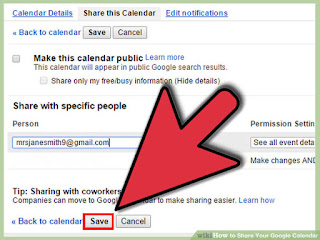
Click "Save" at the bottom of the page. The people you have invited will now appear under your email address. They will also receive an email notification about your Google calendar. The calendar will automatically be added to their Google Calendar account for viewing/managing, under “Other calendars”.
- If you enter an email address for someone that does not have a Google account, they will be sent an email inviting them to join Google and create an account. Only Google users can access your calendar.
4
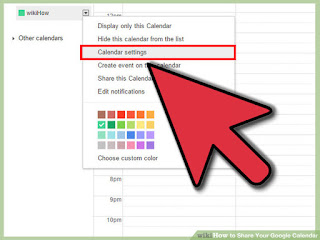
Share without sending an invite. On your Google Calendar homepage, click on the arrow to the right of the calendar you want to share. Select "Calendar settings."
5
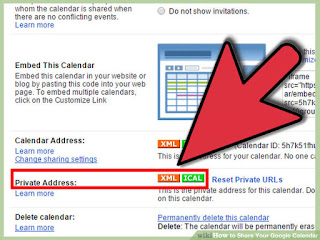
Scroll down to the "Private Address" section. Click on the button that corresponds with your desired format.

- XML allows the calendar to be accessed from other applications and can be copied into any feed reader. The ICAL URL can be used in any application that supports the iCal format.
- Copy and paste the URL that pops up in the next screen and give it to anyone whom you'd like to share the calendar with. Press OK once you have copied the URL to your clipboard.
- This address gives the recipient full control over the calendar. They will be able to make edits and add other users.
resource by: wikihow
You can install in Goole Play