Viber

Follow Us

Showing posts with label 360 Security. Show all posts
  1. Choose a security question from Tips menu.
  2. Enter a answer in Answer box.
  3. Tap on the √ icon from top right corner to save security question.

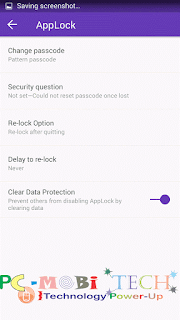
  • Re-lock Option- You can select the option you wish to Re-lock. In it you will find two options.
  1. Re-lock after quitting- Your application will not be locked until then, as long as you do not close the application.
  2. Re-lock after screen off- your application automatically locked, after screen going off.

  • Delay to re-lock- With this option you can set the locking time of application. The option works with “Re-lock after screen of options”. You can decide here  how long after the close of the screen to lock the application. to set application lock timing, select radio button of 5s, 15s, 30s …… etc & after click on Confirm.

  • Clear Data Protection- It is the most important option. If you do not want any other person to open the application by reset the settings of the Applock. To implement this option, So if someone without your knowledge would like to reset the settings of the Applock, so too can not.

Many times it happens that we forget the password And without password can not unlock apps. So I’m telling some ways for you to be able to unlock apps.

Open 360 Security app in your Smartphone. tap on Menu option & open Applock. Now it will ask you for your password. Now tap on the 3 dotted menu that available upper right corner of the screen, tap on FORGOT passcode from the menu. As soon as you tap on it. It will ask you to log in with Google account. To log on, click on Confirm. Now log in to your Gmail account to reset Applock.
If you have not turned on clear data protection option then you can disable Applock by clearing 360 security app data.
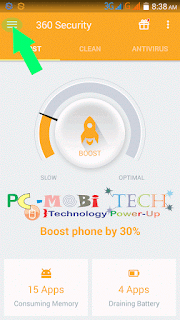
Tap on the top left corner of the 360 Security antivirus.


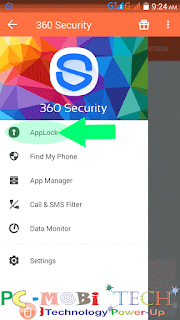
Now tap on the AppLock from the menu.


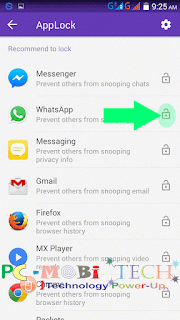
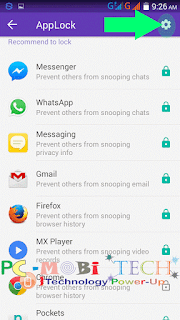
Now you’ll see the list of applications installed on the smartphone. Now the application you want to block, tap on the lock icon available in the front right side of the app.

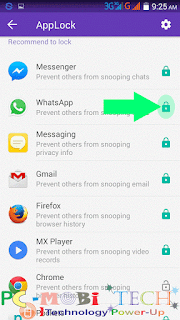
If your application locked then you will see green lock icon in the front of the app. You can also unlock by tapping again on this icon.

Tap on the Settings (gear) icon at the top right corner in application list.

In AppLock Settings you will see 5 options- Change passcode, Security question, Re-lock Option, Delay to re-lock, Clear Data Protection.

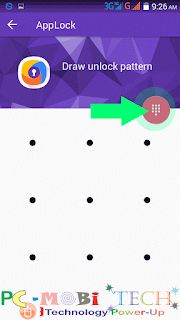
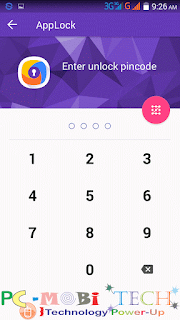
  • Change Passcode- As soon as you click on Change passcode. So you’ll see the pattern lock or PIN code lock option. If you see the pattern lock and you want to lock pincode, then tap on the pink circle available under the Draw unlock pattern. You can easily switch between pattern lock & pincode by tapping on this pin circle.

  • Security question- Now you can set a security question in 360 Security antivirus Applock. If you forget the password of the 360 security Applock, then you can password recovery with the help of the Security Question. You can set one question from 7 types of security question.

You can install app in Google Play


GUIDE APP ANDROID

TIPS GUIDE GAME APP

TRICK GUIDE APP ANDORID