Viber

Follow Us

Showing posts with label Google Books. Show all posts
1
Open the book you want to download. You can download any book that have a "Read" link on their Google Books search result. The book will need to be free in order to download it using this method; if the book was purchased, it will be in your Google Play Books library.
2
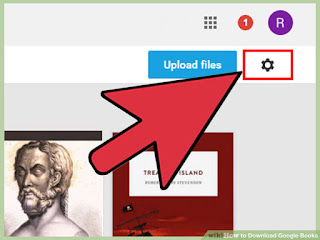
Click the Gear icon in the upper-right corner of the page.
3
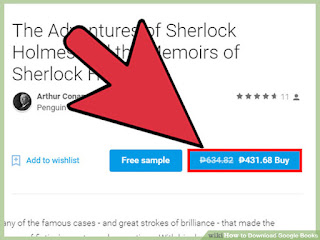
Select "Download PDF" or "Download EPUB". This will allow you to download the book to your computer in the format you choose. If you don't see this option, then the book will need to be purchased before you can download it.
  • PDF is compatible with the most devices, but will not contain any navigation features.
  • EPUB is designed for eBook readers, and allows you to use eBook reader functions with the book.
1
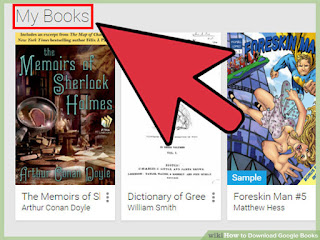
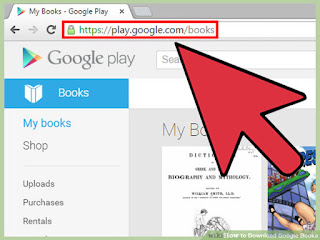
Open your Google Play Books library. You can access it atplay.google.com/books. You will be prompted to log in with your Google account if you aren't already.

2
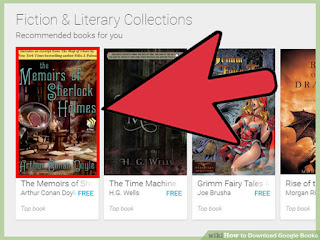
Find the book from your library that you want to download. You can only download books that you have purchased, free books that were added to your library from the Google Play Store, or books that you manually uploaded.
  • You cannot download any books in your library that say "Sample" on the cover image. The sample is a few pages of the book and not the whole thing.
  • Not all purchased books will be able to be downloaded, as the decision is up to the publisher.

3
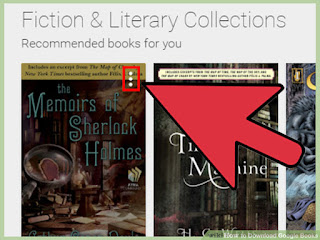
Hold your cursor over the book and click the menu button that appears in the upper-right corner of the cover. If you are already have the book open, you'll need to click "Exit" to return to your library first.


4
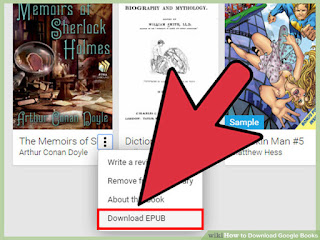
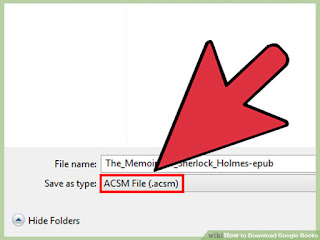
Select "Download PDF" or "Download EPUB". This will allow you to download the book to your computer in the format you choose. Purchased books will be downloaded in ACSM format as a form of DRM (Digital Rights Management).
  • PDF is compatible with the most devices, but will not contain any navigation features.
  • EPUB is designed for eBook readers, and allows you to use eBook reader functions with the book.
5
Remove the DRM from purchased book downloads. When you download a PDF file of a book that you purchased from Google Play Books, it downloads in ACSM format. This is actually just a link that needs to be opened in a program called Adobe Digital Editions.


Resource by: Wikihow

You can install in Google Play


Google is one of the best sources of downloadable books on the Internet, allowing you to choose what you want to read from various sources and access them on your computer or on an E-reader. Downloading your Google Books can be a little tricky, especially if you want to use them on other devices. You can download the books as EPUB or PDF, but you may need to remove the copy protection after downloading it.

Before you start

1
Understand what can be downloaded. There are essentially two forms of Google Books: the Google Books search engine and online reader, and the Google Play Books store. The link between the two is minimal, but all purchased books will be in your Google Play Books library. Regardless of which service you are using, you can only download books that you have purchased, or books that are freely available.
  • You cannot download any book in Preview mode. This view allows you to read selected pages from a book before buying, usually as a way to ensure that the conversion to eBook format is suitable. If the book has pages omitted, it cannot be downloaded.

GUIDE APP ANDROID

TIPS GUIDE GAME APP

TRICK GUIDE APP ANDORID