Viber

Follow Us

Showing posts with label Skype. Show all posts

1
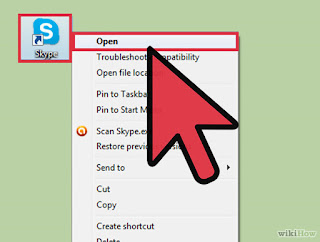
Open the Skype program.
2
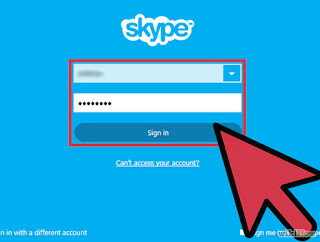
Enter username and password and login.
3
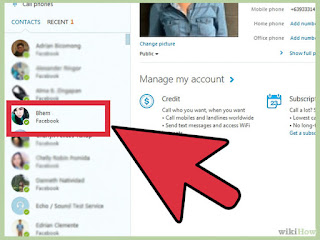
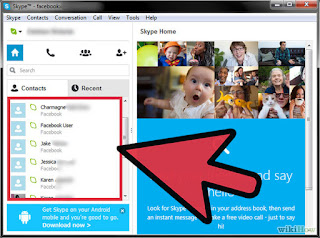
Find the person you want to talk with on your Contacts list. This should be available on the main Skype screen


4
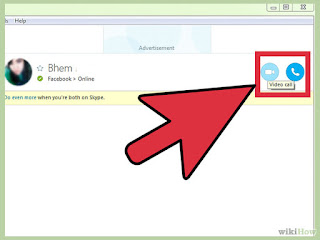
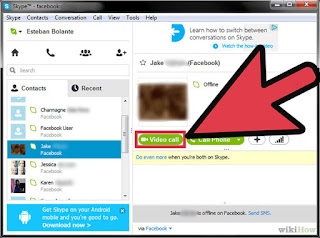
Click on the name you would like to contact. You should now see on your screen one symbol that looks like a video camera and another that looks like a telephone. You will place a video call if you click on the camera and an audio only call if you click on the telephone icon. Determine which option you prefer and make the call.
  • To clarify, all Skype-to-Skype calls (or calls to tablets or smartphones running the Skype app) that are transmitted solely using the Internet are free. Those calls you make to land-line or cell phones will be charged.

5
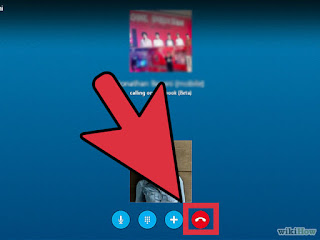
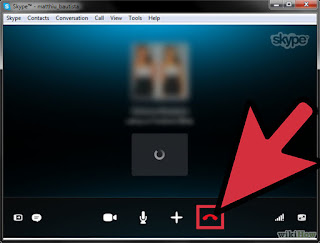
End the call when you are done. On the Skype calling window there should be a red icon with a downward facing telephone on it. Click this to end the call.

You can install in Google Play

There are now a number of options available that allow people to video call friends or family via their computers. One of the best known and most reliable is Skype. The most commonly used function on Skype--computer-to-computer calls--are free of charge, and for this reason it may be one of the most efficient means you can use to stay connected. To use Skype, first follow a few easy steps.
Skype is a chat program that lets you make free calls to other Skype users, as well as make and receive calls from landlines and mobile numbers for a fee. You can even video chat for free with other Skype users. This guide will show you how to install Skype and get connected to your friends and relatives, and start making free calls.

1
Tell the contact when you would like to Skype them. This can be impromptu if they're online, or as a left message for when they return. Of course, you could always text them and tell them to get online!
  • To check to see if they are online, look at the icon in front of their username. If there's a green checkmark, they're on and available. If it's yellow, they're away. A gray icon indicates that they're offline.

2
Have a conversation. You'll be alerted at the bottom right hand corner of your screen when your contact logs on. Alternatively, check the list on the left to see if your conversation partner has logged on. If they have, click their name. You then can make a video or voice chat.
  • In addition to the video and voice chat functions, you can call their mobile phone or simply send them a type-written message. You may want to send them a message prior to calling to make sure they're ready.
  • You can always mute your call by pressing the microphone button. There are a number of functions you can use to enhance your experience, so start experimenting. You can share your screen, have a party line, or use picture-in-picture.

3
End the call. After you've said goodbye, of course. Click on the red circular phone button at the bottom of the screen that popped up when you called the person.
  • If your call ends without either party initiating it, there's a connection problem. It could be temporary or it could have to do with one party's weak connection. Video calls generally take more juice, so switch to a voice chat to make the sound better.

4
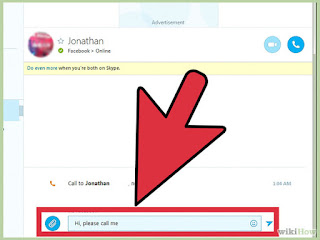
To just chat, enter your text in the bottom box and press enter on your keyboard. If the person is offline, you'll see a rotating circle to the right of your text. They'll get it when they log on.
  • Text speak is OK to use, just be aware not everyone knows it.
You can install in Google Play

1
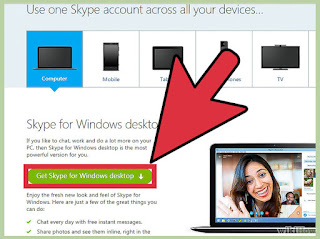
Download Skype from Skype.com. Versions are available for any setup and the basic download is free. If you'd like to make phone calls, there are small fees. Either way, you'll be communicating in seconds.


2
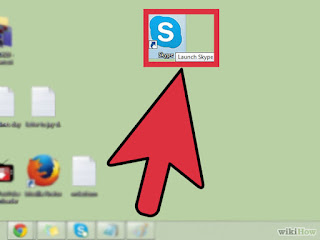
Open the Skype application from your desktop or start menu and sign in.
  • If you don't have a Skype account then you will have to create an account. It'll ask you for your basic information -- nothing important or secure has to be given. You'll also create your account name and how your name will appear to others.

3
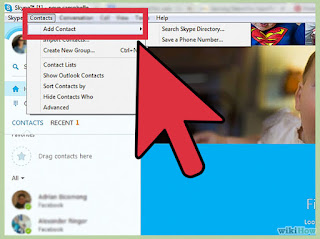
Create your contacts. On a Mac, at the bottom of the main Skype window, click the + sign at the bottom of the page; for a PC, above the contacts box, click the head, and + sign (you have to right click on the main menu for this to come up on Windows 8). "Add New Contact" button, then (for both computers) follow the search instructions listed.
  • The other person has to accept your contact, too. You won't be able to Skype them if they haven't accepted. Skype will let you know when they've been added to your list.
You can install in Google Play

GUIDE APP ANDROID

TIPS GUIDE GAME APP

TRICK GUIDE APP ANDORID