Viber

Follow Us

Showing posts with label Yahoo. Show all posts
1
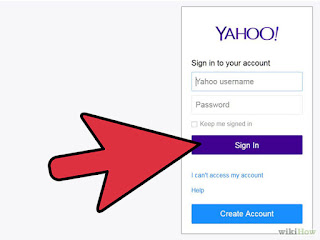
Log into your Yahoo! Mail account.
2
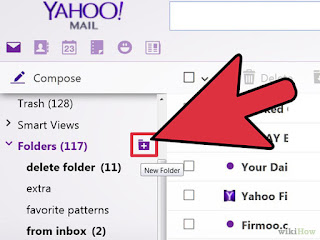
Create a new folder. On the left panel, you can find a "Folders" menu; click on it to show all your current folders. Click on the icon beside it to create a new folder.
3
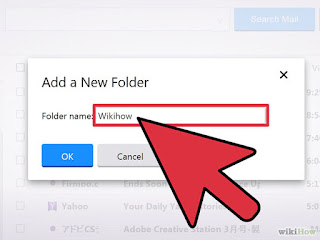
Name the new folder. Make it short but descriptive. You would want to know what’s inside the folder just by looking at its name.

4
Create more folders. Repeat steps 2 and 3 as needed.


Resource by : Wikihow


You can install in Google Play


We all receive lots of e-mails every day. Organizing them is helpful in prioritizing which ones need our attention first. Yahoo! Mail has a built-in filtering system that allows you to automatically segregate incoming e-mails into corresponding folders. With this, you can put work e-mails on a separate folder that has a high priority. At the same time, you can put unsolicited e-mails to a junk or spam folder. This will really make your life easier, especially if you get hundreds of e-mails a day.
1
Log into your Yahoo Mail account. You can set Yahoo to forward to any email address, including Gmail. Many users have reported problems with getting email forwarding to work, so if this method doesn't work for you, try the next section instead

2
Click the Gear button in the upper-right corner and select "Settings." This will open a new window.

3
Click the "Accounts" tab. Your Yahoo Mail account and other connected accounts will be displayed.

4
Click your Yahoo Mail account at the top of the Accounts window. This will open your Yahoo Mail account settings.

5
Scroll down and select the "Forward" option. This will allow you to forward messages to other accounts.

6
Choose what you want to happen to your messages after forwarding. Yahoo will keep your email stored on your Yahoo account after it is forwarded to the other address. You can choose to store it as is or mark it as Read.

7
Enter the email address you want to forward messages to and click "Verify."This will send a verification message to the address you entered.

8
Allow the pop-up if your browser blocks it. Many browsers will block the verification pop-up that appears after clicking "Verify." If the pop-up doesn't appear, click the pop-up icon on the right end of the address bar and allow pop-ups from Yahoo Mail.

9
Open the verification message that is sent to the address you entered. You'll need to use this message to verify that you own the account you entered.

10
Click the link in the verification email. This will verify that you own the account, and add it to your Yahoo Mail account

You can install in Google Play


If you've switched email services, you don't necessarily have to make sure everyone has your new address. With mail forwarding, you can have all of your Yahoo messages automatically sent to your Gmail account. You can also configure Gmail to handle all of your Yahoo mail, and even send from your Yahoo address.

GUIDE APP ANDROID

TIPS GUIDE GAME APP

TRICK GUIDE APP ANDORID